Where errors show
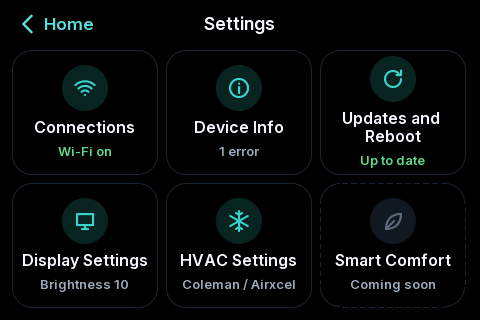
Home›Settings›Device Info›Error codes
Errors show in one place: the Error codes line on Device Info. Scroll the list on the right to reach it. There is one line per zone: Z1, and Z2 to Z4 on a multi-zone system.
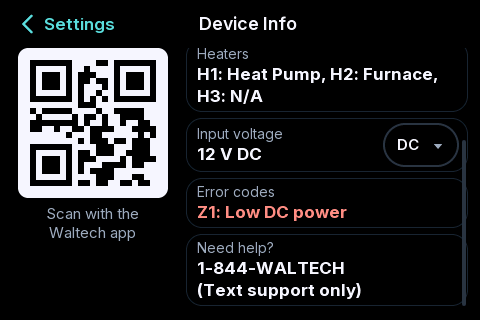
- Green none means that zone is healthy.
- Red words name the problem.
- The Home and dial screens do not change when there is an error, so look here when something is not working.
What each message means
| Message on screen | What it means | What to check |
|---|---|---|
| Communication Loss | The thermostat and the AC are not talking to each other. | Turn the power off. Check the signal wire (or the phone-style plug) is fully in, and that power and ground are tight. Make sure that AC has power. |
| No AC power | The air conditioner has no 120V power. | Check shore power or the generator, and the AC breaker. |
| Low DC power | The 12V supply is low. | Check your house battery and the Input voltage line on Device Info. |
| Invalid dip switch | The small switches on the AC's control board are set in a way that does not match. | This is set on the AC, not the thermostat. Text us a photo of the switches. |
| Indoor sensor Unplugged indoor Shorted indoor | The AC's indoor temperature sensor is not reading correctly. | The sensor may be unplugged or damaged. An RV technician can check it. |
| Outdoor sensor Unplugged outdoor | The AC's outdoor sensor is not reading correctly. | The sensor may be unplugged or damaged. An RV technician can check it. |
| Freeze sensor | The AC's freeze sensor is not reading correctly. | An RV technician can check it. |
Good to know: These messages come from your air conditioner. The thermostat is passing them on, so most of them point to the AC or its wiring, not to the thermostat.
What to do next
- Write down the exact words and the zone (Z1 to Z4).
- Reboot: Settings, then Updates and Reboot, then Reboot.
- If the message comes back, check the items in the table above.
- Still there? Text 1-844-WALTECH with a photo of the Device Info screen.
Frequently Asked Questions
Still need help?
Text us a photo of your screen at 1-844-WALTECH. Text only, no calls.