Look at your screen
Your thermostat may have shipped with the old screens. Which one do you see?
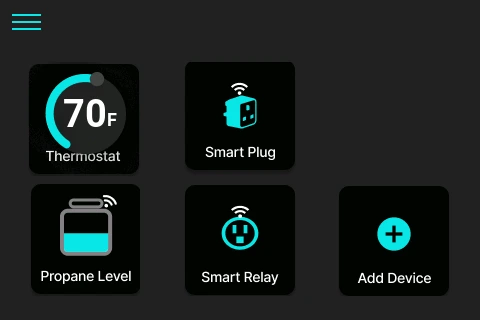
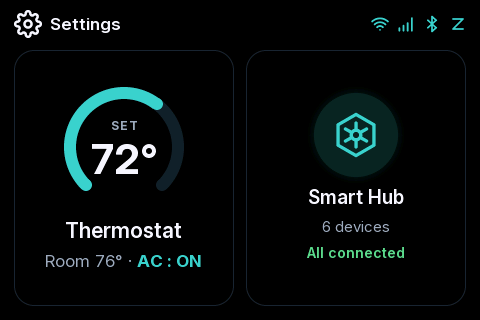
Get the new screens
Pick one. Watch the short video and tap along.
Turn your sound on. Tap pause any time.
Read the steps
If it opens on Controller Selection, slide up to find your AC brand, tap the box that matches, pick your heat on each line and tap Submit.
If it opens on any other screen, that is fine. Most are already set to some system at the factory. Keep going. You set your own AC in Step 3.
Tap the three lines at the top left.
Tap Connectivity Settings.
Turn Wi-Fi ON. Tap the blue arrow next to it.
Tap your Wi-Fi (2.4 GHz only). Type the password. Tap the check mark.
When it says Connected, tap back.
Slide the list up. Tap Firmware.
Tap the blue arrow next to Check for update.
When it says UPDATE AVAILABLE, tap Update.
Wait 5 to 10 minutes. Do not turn it off. It restarts with the new screens.
There are three updates: Master (screen, Wi-Fi, cellular, Bluetooth), Radio (Zigbee sensors) and Controller (runs your AC and heat). Each one updates by itself. Finish them in number 3 below.
Turn your sound on. Tap pause any time.
Read the steps
If it opens on Controller Selection, slide up to find your AC brand, tap the box that matches, pick your heat on each line and tap Submit.
If it opens on any other screen, that is fine. Most are already set to some system at the factory. Keep going. You set your own AC in Step 3.
Not added to the app yet? Do Step 1 of this guide first. The app is called WalTech Connect.
On your phone, open the WalTech app. Tap the gear at the top right.
Slide up to the bottom of Settings. Under Device Tools, tap Update firmware.
Tap Download locally next to all three: Master, Radio and Controller. Get all three now, while your phone still has internet. Then tap Update next to Master.
On the thermostat, tap the three lines. Slide the list up. Tap Firmware.
Tap the blue arrow next to HOTSPOT MODE FOTA.
Back on your phone, stand close and tap Connect.
When it says Connected, tap Transfer. Keep the phone close until it reaches 100%.
Tap Finish. The thermostat restarts with the new screens. Do not turn it off.
There are three updates: Master (screen, Wi-Fi, cellular, Bluetooth), Radio (Zigbee sensors) and Controller (runs your AC and heat). Now do the same for Radio and Controller, one at a time. They are already on your phone.
Finish on the new screens
One more check, now on the new screens.
Tap Settings, then Updates and Reboot, then Update over the air.
Tap Check. If it finds an update, tap Update. Do not unplug.
Tap Update again until all three lines say Up to date.
Your thermostat has three pieces of software. Each one updates by itself:
- MasterThe screen, Wi-Fi, cellular and Bluetooth.
- RadioZigbee. It talks to door, leak and motion sensors.
- ControllerThe part that runs your AC and heat.
One may need an update while the others do not. That is normal.
Step 2 of 5 is done. You are not finished yet: 3 more steps to go.
Go to step 3: Controller and heaters →Questions
My WalTech UST 3.0 screen looks different from the guide. Why?
It shipped with the old screens. Update the software first: menu, Settings, Firmware, Check for update, then Update. After it restarts you have the new screens.
Can I update the UST 3.0 without Wi-Fi?
Yes. On the Firmware screen tap the blue arrow next to HOTSPOT MODE FOTA, then open the WalTech app on your phone. The app connects to the thermostat and sends the update.
Stuck? Text a photo of your screen to 1-844-WALTECH. Text only, no calls.